 Defingo Net
KumaStatusBar: Uptime Kuma in the Menu Bar
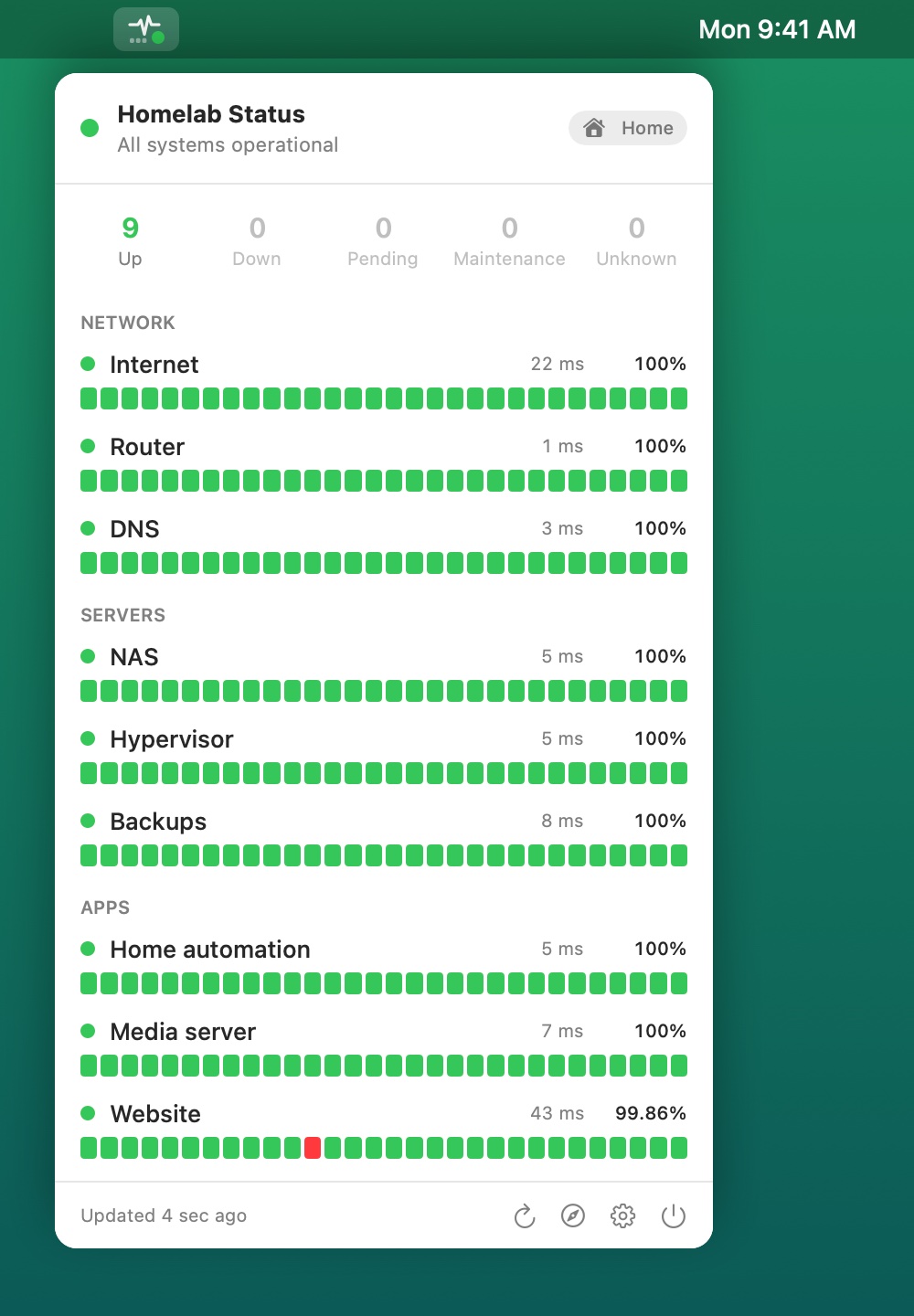
Uptime Kuma watches everything in my homelab: the NAS, the Proxmox host and its containers, the media apps, DNS, the internet connection. It’s great at noticing problems. But I only saw them when I remembered to open a browser tab, or when a notification arrived and I had to go find out what it meant.
I wanted the answer to “is everything OK at home?” to be one glance at the top of my screen. So I built KumaStatusBar, a small macOS menu bar app for Uptime Kuma. It’s free, and it’s in Apple’s App Store review as I write this.
What It Does
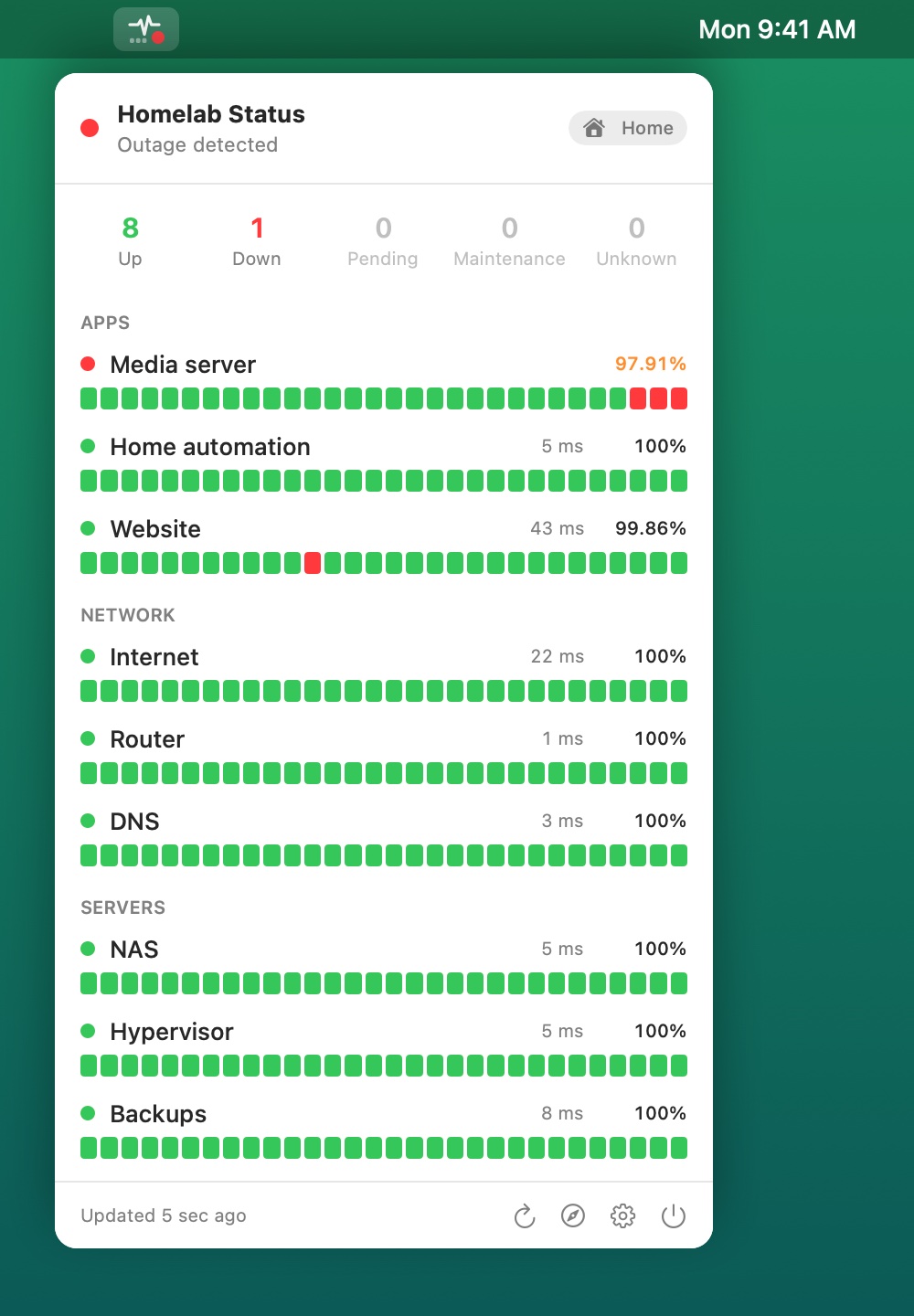
The menu bar icon carries a colored dot: green when everything is up, red when something is down, yellow for pending, blue for maintenance. Click it and a popover lists every monitor on an Uptime Kuma status page, with its latency, 24-hour uptime and a row of recent heartbeats, problems first.
When a monitor goes down or recovers, it sends a macOS notification, with a sound that still plays during Focus if you want it to. That’s it. It’s meant to be small and quiet until something needs attention.
Home and Away
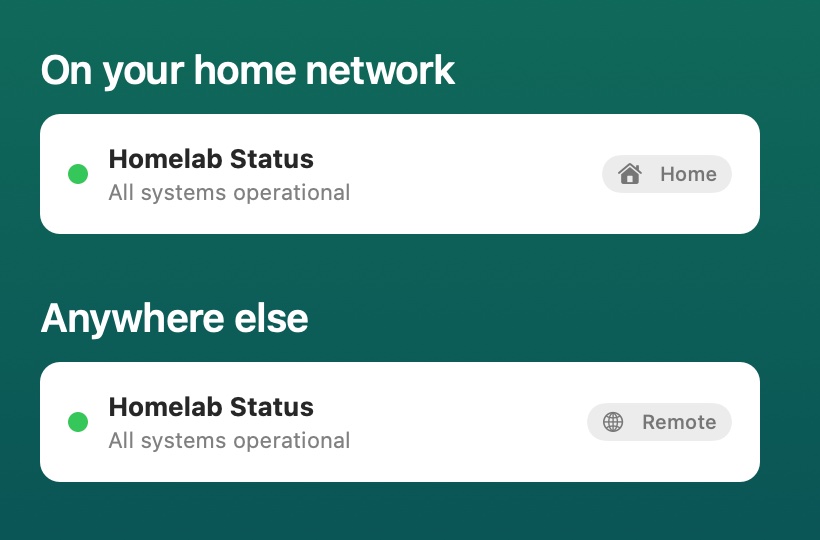
The feature I’m most pleased with solves a homelab problem specifically. At home, Uptime Kuma is right there on the LAN. Away from home, it’s only reachable through something like a Cloudflare Tunnel. I didn’t want to change settings every time I opened my laptop somewhere else.
So KumaStatusBar takes two addresses:
- a home URL, Kuma’s address on your network (plain
http://is fine), and - a remote URL, the same status page published through a tunnel.
In Automatic mode, each check tries home first with a short timeout and falls back to remote. After home has failed twice it stops trying until the network changes, so being away doesn’t slow every check. A small Home or Remote badge shows which route it’s using, and switching routes never triggers an alert. Only failing on every route does.
Behind Cloudflare Access
My status page isn’t public. It sits behind Cloudflare Access, which normally means a login page, and a menu bar app can’t click through a login page. The answer is a service token: Access accepts a client ID and secret sent as two HTTP headers from an app, while people still sign in normally in a browser.
KumaStatusBar has fields for both, a Test button for each address, and it only ever sends the token to the remote URL. I covered how to set up a tunnel and service token in Tailscale or Cloudflare Tunnel for Family Apps. It’s the same pattern.
How It Came Together
It went from first commit to version 1.0 in a day and to 1.6 within a week, in Swift and SwiftUI. Most of that week was the unglamorous part of making it a real app rather than a script:
- Settings that apply immediately, with a sample-data mode (empty, 1, 25 or 60 monitors) to check that the popover handles any size, and a Simulate outage button to test alerts without breaking anything.
- A first-launch setup screen instead of an error when nothing is configured yet.
- Releases: a script that builds a DMG with a proper drag-to-Applications window, signs and notarizes it with Apple so it opens without a security warning, and publishes it with release notes from the changelog.
- A Mac App Store build, with the App Sandbox limited to outgoing network connections, the service token in the Keychain, and a privacy manifest that says what’s true: no tracking and no data collected. The app talks only to your own Uptime Kuma server.
The App Store submission brought its own homework: listing text that fits Apple’s length limits, screenshots rendered from made-up demo data rather than my real monitors, a support page, a privacy policy, and a public demo status page so the reviewer had something to point the app at.
The app took a day. Making it something other people can install took the rest of the week.
Try It
KumaStatusBar needs macOS 14 or later on Apple Silicon, and an Uptime Kuma status page containing the monitors you want to watch. The product page has setup steps and an FAQ, and there’s a support page if you get stuck.
I’ll update this post when it clears review and is in the Mac App Store.