Built for homelabs
You already run Uptime Kuma. Now keep an eye on it without a browser tab.
Uptime Kuma watches your services. KumaStatusBar watches Uptime Kuma, quietly, from the menu bar, and only gets your attention when something needs it.
At your desk
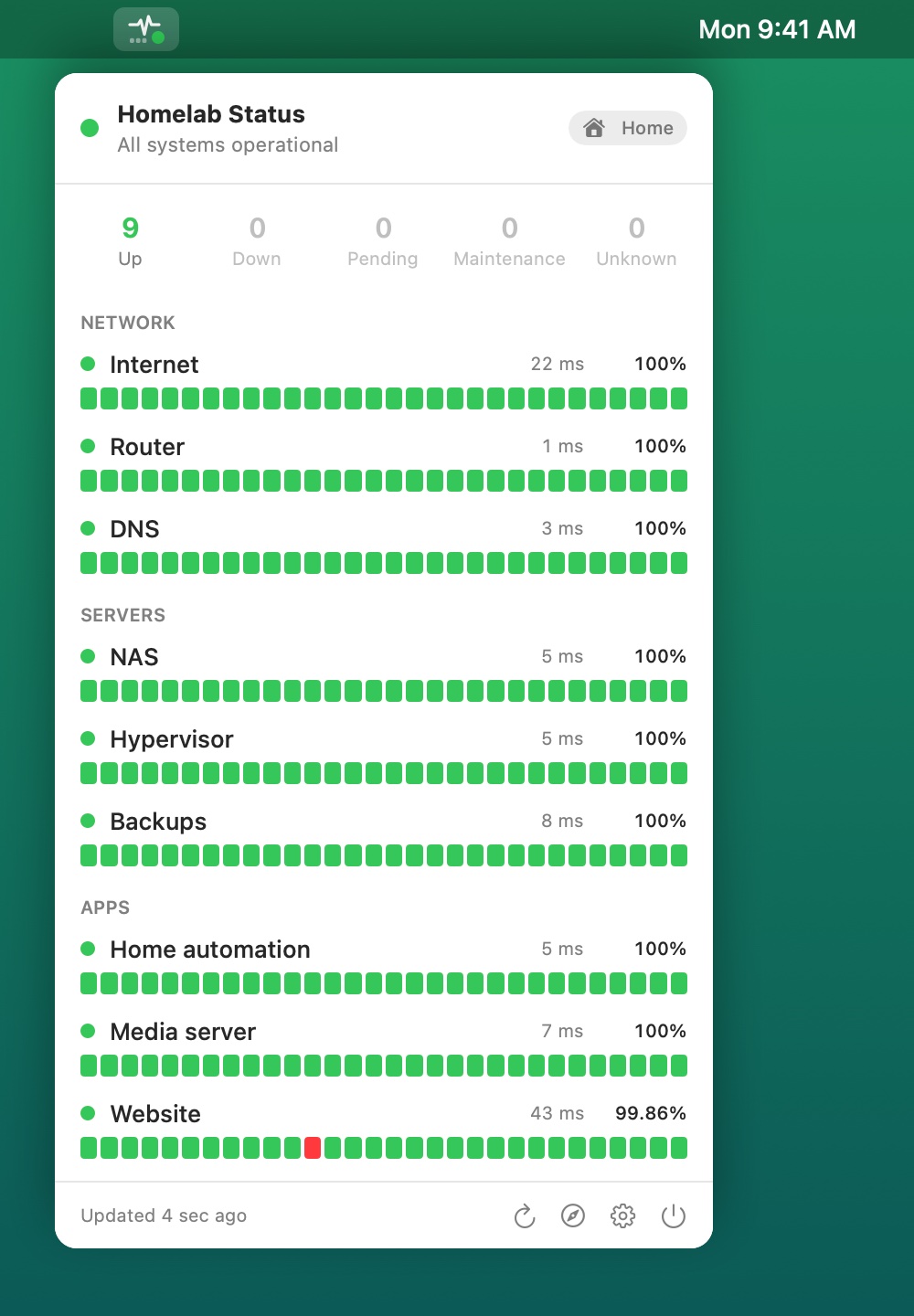
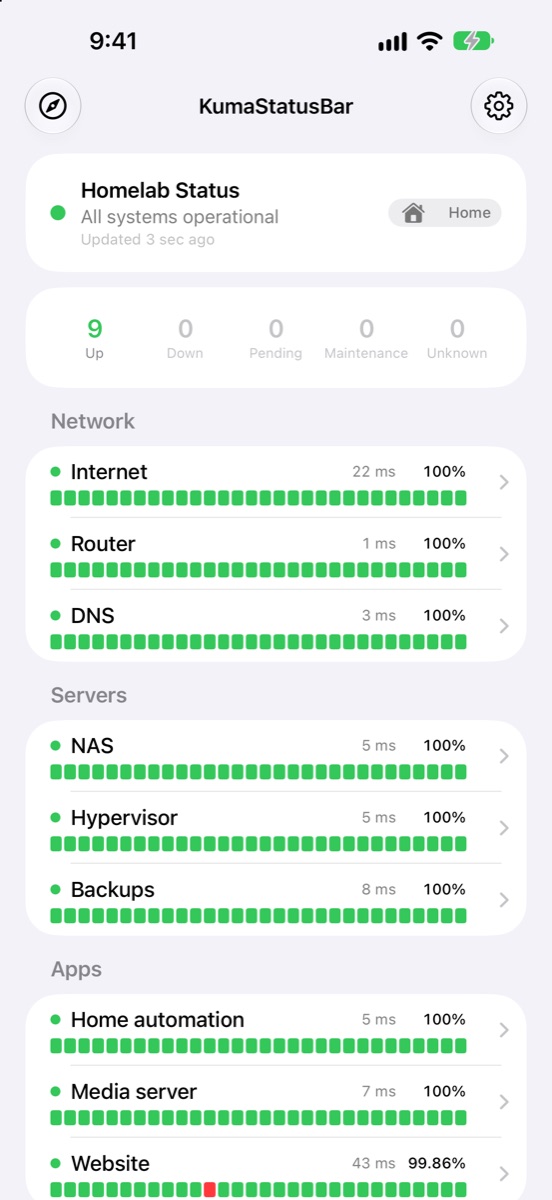
Glance at the router, the NAS, your self-hosted apps and the internet connection itself, each with latency, 24-hour uptime and its last 30 heartbeats.
When something breaks
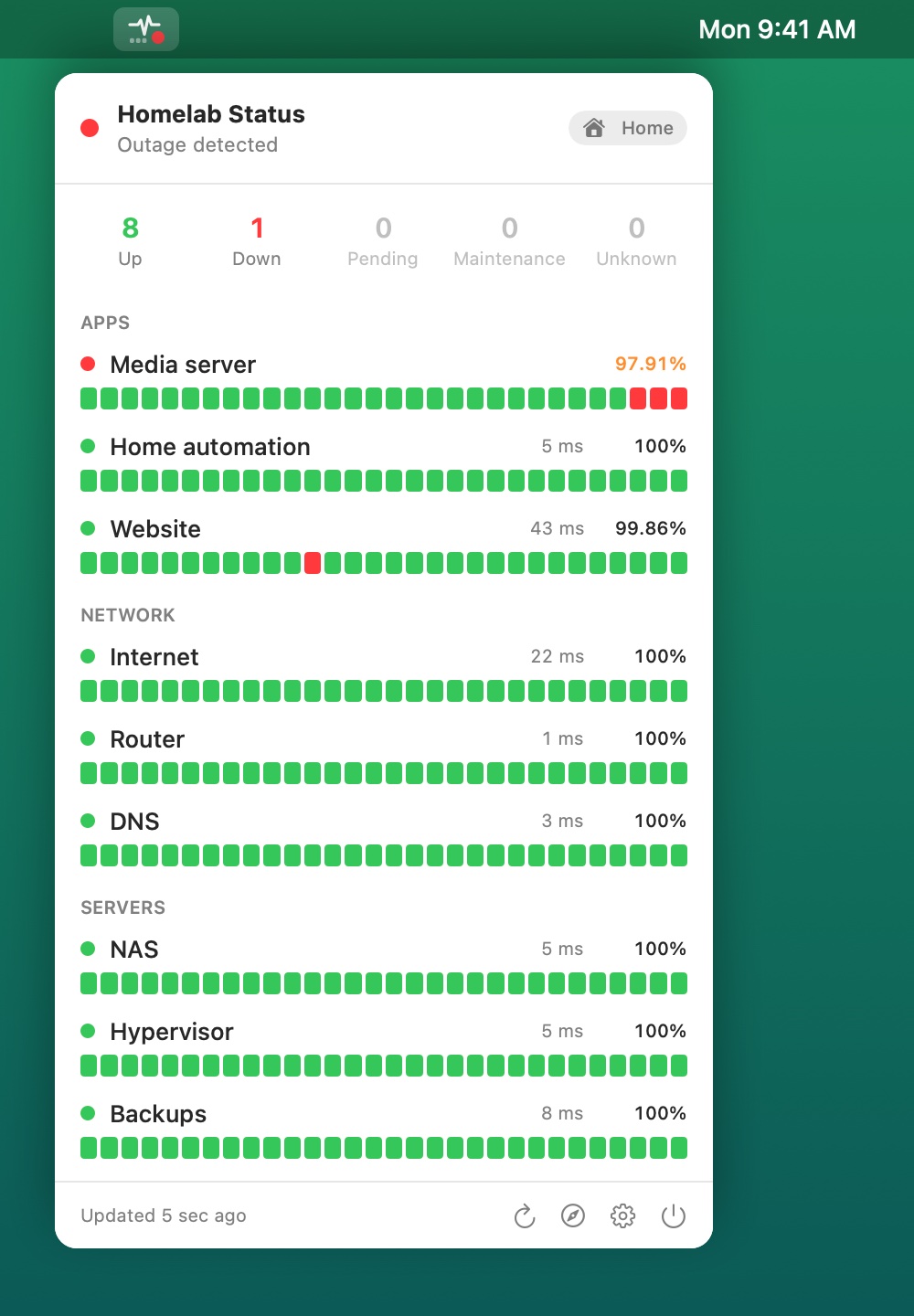
A red badge on the menu bar icon, a notification and a sound. A different sound when it recovers, so you know it's fixed without looking.
Away from home
Direct to Uptime Kuma on your network, through your Cloudflare Tunnel everywhere else. It switches on its own when you leave the house.
Alerts
Know the moment something goes down
Problems jump to the top of the list, so the one thing that's wrong is the first thing you see.
- Choose any built-in macOS sound for down and for recovered.
- Sounds play even with Focus on, for alerts you can't miss (or switch them off).
- Simulate status changes lets you see and hear it all without breaking anything.
Home and away
Direct at home. Through your tunnel when away.
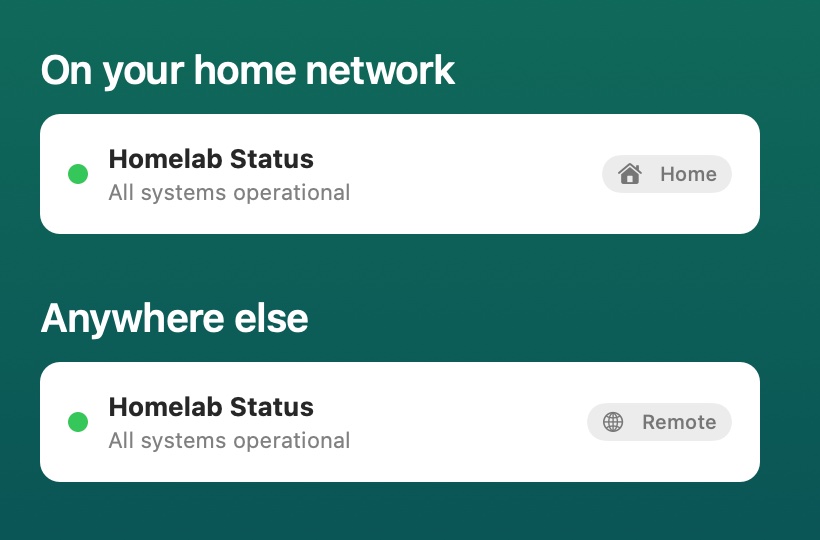
Give KumaStatusBar two addresses and it picks the right one. A small badge in the popover shows which it used: Home or Remote.
- Works on Wi-Fi, Ethernet and over a VPN back home, with no Wi-Fi network names to configure.
- Plain
http://on your LAN is fine, and self-signed certificates can be trusted. - Cloudflare Access service tokens are kept in your Keychain and only ever sent to the remote URL.
Ideas
What homelabbers watch with it
Anything Uptime Kuma can monitor and you've put on a status page shows up here. A few favourites:
Setup
Up and running in a few minutes
KumaStatusBar reads your status page, public or behind Cloudflare Access, so there's no Uptime Kuma password or API key to hand over.
Make a status page
In Uptime Kuma, create a status page and add the monitors you want in your menu bar. Use groups to keep it tidy; KumaStatusBar shows them the same way.
Optional: reach it from anywhere
Publish Uptime Kuma through a Cloudflare Tunnel. To keep it private, protect it with Cloudflare Access and create a service token with a Service Auth policy.
Paste the addresses
In KumaStatusBar's Settings, paste your status page's home address (e.g.
http://192.168.1.20:3001/status/home) and its remote one, add the token if you have one,
and click Test.
On your iPhone
The same status page, in your pocket
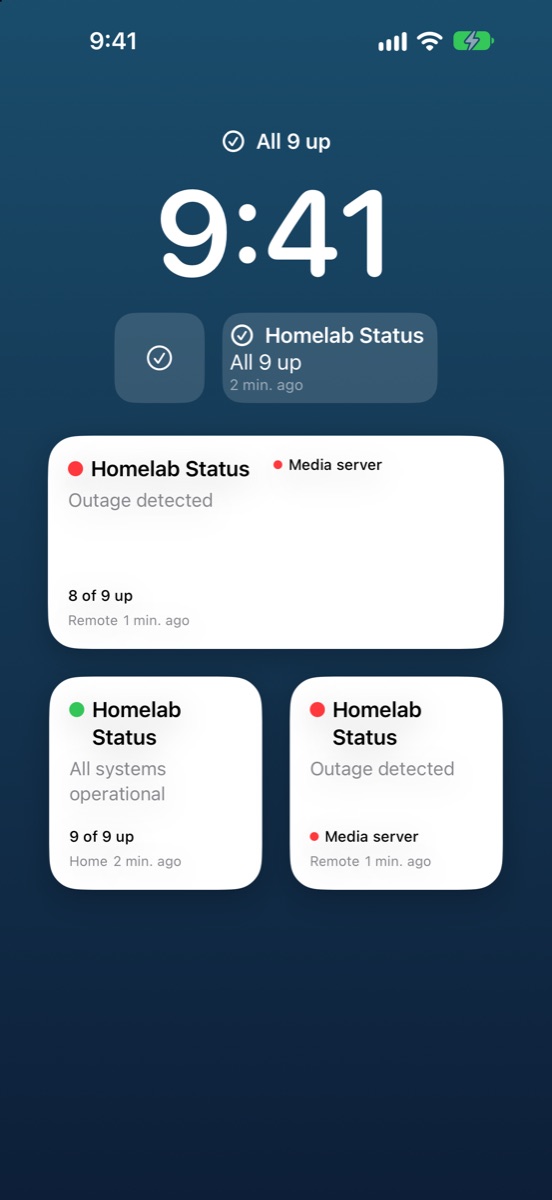
KumaStatusBar for iPhone shows your monitors with their latency, uptime and heartbeats, uses your home address on Wi-Fi and your remote one everywhere else, and puts your status on the Home Screen and Lock Screen.
- Widgets show what's up and what's down, and check in on their own throughout the day.
- Set up once: your addresses and Cloudflare token sync between Mac and iPhone through iCloud, or scan a QR code from Share Setup.
- For instant push alerts on your phone, pair it with Uptime Kuma's own notifications (ntfy, Pushover, Bark).
Features
Small, focused, and private
Questions
FAQ
Does it need my Uptime Kuma login or an API key?
No. It reads the status page you'd open in a browser, so it only sees what's on that page, and it can't change anything on the server. Unlike Uptime Kuma management apps, it never logs in.
Can I watch a status page I don't run?
Yes, if you can open it in a browser: a team's or provider's Uptime Kuma status page works the same as your own. If it's behind Cloudflare Access, you'll need a service token from whoever runs it.
How is this different from Uptime Kuma manager apps?
Manager apps log in to Uptime Kuma to add and change monitors. KumaStatusBar doesn't: it watches your status pages, so there's no admin access to hand over. It's built for checking in from anywhere: direct at home, through your tunnel when away, in the Mac menu bar and on iPhone with your settings synced, for free and without collecting any data.
Can I watch more than one status page?
Not yet: KumaStatusBar watches one status page, with separate home and remote addresses for it. Watching several pages at once is planned.
Can I keep my status page private?
Yes. Put it behind Cloudflare Access and give KumaStatusBar a service token. On your home network it can connect to Uptime Kuma directly, with no token involved.
Do I need Cloudflare?
No. Any address that reaches your Uptime Kuma server works, such as a reverse proxy or a VPN. Cloudflare Access support is there if you use it.
Does it work over Ethernet and VPNs?
Yes. It decides by whether your home address answers, not by Wi-Fi network name, so wired connections and VPNs home work too.
What does it cost?
Nothing. KumaStatusBar is free on the App Store, for Mac and iPhone, with no in-app purchases.
Is there an iPhone version?
Yes, with widgets. It's the same App Store download as the Mac app. iOS only lets apps check while they're open (and widgets every 15–30 minutes), so for instant alerts on your phone, use Uptime Kuma's own notifications alongside it.
What does it collect?
Nothing. See the privacy policy.